Best Tablet for Home Assistant Kiosk in 2026: 4 Wall-Mount Picks
If you’ve spent any time in the Home Assistant community, you’ve seen the photos: a sleek tablet flush-mounted in a kitchen wall, a custom Lovelace dashboard glowing softly, room temperatures, lights, and camera feeds all one tap away. It looks great. But the moment you start shopping, the picture gets messy.
A tablet running 24/7 on a wall has different priorities from a tablet that lives in a backpack. Battery longevity matters more than peak performance. Software you can actually lock down matters more than a megapixel count. And — the part nobody warns you about — getting a tablet to stay on the dashboard without drifting off to system updates, lock screens, or Smart Cast popups is a whole project of its own.
This guide cuts through the noise. After testing the most-recommended tablets in the Home Assistant community and reading every cautionary post about screen burn-in and swollen batteries, here are four tablets that actually work as permanent HA kiosks in 2026, ranked by use case.
Affiliate disclosure: As an Amazon Associate I earn from qualifying purchases. Prices and availability shown below are pulled live from Amazon and may change.
Quick comparison
What actually matters in a Home Assistant kiosk tablet
Before the picks, a quick reality check on what you should actually be looking for. The forums are full of people who bought the wrong tablet and found out three months in.
Battery management is the #1 issue. A tablet plugged in 24/7 will eventually develop a swollen battery if it sits at 100% all the time. Lithium-ion cells hate being topped up indefinitely. The two solutions: pick a tablet that has a built-in battery-charge limit (Lenovo’s “Conservation Mode” or Samsung’s “Protect battery” setting), or use a smart plug to cycle power between 20% and 80%. The Lenovo M-series and Samsung tablets running One UI 5+ both have native limiters. Fire tablets and iPads do not — for those, you’ll need a smart plug automation in HA.
Screen size: 10–11 inches is the sweet spot. Smaller and your dashboard cards become cramped; larger and the tablet starts dominating the wall. Almost every popular HA wall-mount setup falls in this range.
Native Google Play vs. sideloading. This decides whether installing the Home Assistant Companion app takes 30 seconds or 30 minutes. Lenovo, Samsung, and basically any “real” Android tablet have Google Play. Amazon Fire tablets do not — you have to sideload the Play Store or use the dashboard via browser only. It’s not a deal-breaker (Fully Kiosk Browser works on any Android), but it’s a real consideration.
Software support window. A wall tablet is a 3–5 year purchase. A tablet with two years of patches left is a tablet that becomes a security risk on your home network. Samsung leads this category with up to 4 years of major OS updates on the A-series and 7 years on the latest A11+. Apple’s iPads typically get 5–6 years. Amazon Fire tablets get patches but rarely full OS upgrades. Generic budget Android tablets are the worst here — usually one update and done.
Mounting hardware exists. This sounds obvious until you buy an off-brand tablet and discover there are zero 3D-printable wall mounts on Printables for it. Stick with mainstream models and you’ll find a flush-mount STL or magnetic case for nearly any popular HA kiosk YouTube build.
With those out of the way, here are the picks.
#1 — Best Overall: Lenovo Tab M11
The Tab M11 has quietly become the default recommendation in r/homeassistant and the official HA forums for one reason: it nails the boring stuff that matters. The Helio G88 isn’t going to win benchmarks, but for rendering a Lovelace dashboard, fetching sensor states, and showing a couple of camera feeds, it’s more than enough. The 90 Hz panel makes the dashboard feel responsive, even if the GPU underneath is modest.
The killer feature for a kiosk is buried in Settings → Battery → Conservation Mode. Toggle that on and the M11 caps charging at around 60%, completely sidestepping the swollen-battery problem that plagues every other tablet in this guide. You don’t need a smart plug. You don’t need a charging schedule. It just works for years.
Combine that with native Google Play (so the Home Assistant Companion app and Fully Kiosk Browser install in seconds), USB-C power for a clean wired-and-mounted setup, and a microSD slot for offloading any backup photos or media you might cache locally, and you have a tablet that genuinely seems built for this use case — even though Lenovo never advertised it that way.
The downsides are honest. 4 GB of RAM means heavy dashboards with many entities can stutter when they refresh. The Helio G88 will start feeling slow in 2027–2028. And the speakers are mediocre, which matters if you use HA’s TTS features for kitchen announcements.
For most people building a first or second wall kiosk, this is the tablet to buy.

- MULTITASKING MASTER: The Lenovo Tab M11 combines robust performance with portability in a sleek design that easily switches between work or streaming
- POWER-PACKED PERFORMANCE: Streamline your day with the ability to work or study at home and on the go—the MediaTek Helio G88 Octa-Core processor delivers reliable mobile performance
- EXPERIENCE VIVID CLARITY: Immerse yourself in vibrant visuals—a 11" 1920x1200 WUXGA display brings your graphics and photos to life with stunning detail and precision
- DISCOVER SEAMLESS PRODUCTIVITY: Effortlessly juggle multiple applications and browser tabs without frustrating slowdowns, thanks to the generous 64GB SSD storage
- PLUG IN ON THE FLY: Easily connect your accessories and transfer files at lightning speeds with the USB-C port and 3.5 mm audio jack
Why we picked it
- Built-in battery-charge cap (Conservation Mode) — the single most important feature for a 24/7 wall tablet
- Native Google Play: Home Assistant Companion and Fully Kiosk install with one click
- microSD slot up to 1 TB, USB-C charging, 3.5 mm jack
- Plenty of community 3D-printed flush mounts on Printables
What you give up
- Helio G88 + 4 GB RAM is enough today, will start feeling tight in 2–3 years
- Mediocre speakers — fine for notifications, not great for music or HA TTS announcements
#2 — Best Budget: Amazon Fire HD 10
If you’ve decided you want a tablet in every room — kitchen, hallway, master bedroom, kids’ rooms — the math changes fast. Two Fire HD 10s cost less than one Galaxy Tab A9+. And on Prime Day or Black Friday, the Fire HD 10 routinely drops to $75–$90, making it absurdly cheap for what you get: a 10.1-inch Full HD screen, decent build quality, and a battery that’ll easily last a power outage.
The catch — and you have to know this going in — is Fire OS. There’s no Google Play. The Home Assistant Companion app from the Play Store won’t install. You have two paths around this: sideload the Play Store using the standard Fire HD guide (about 15 minutes of work, fully reversible), or skip the companion app entirely and use Fully Kiosk Browser pointed at your HA dashboard URL. Most kiosk-only users go the browser route — it’s actually more reliable for a permanently-mounted display.
The other quirk is lockscreen ads. Amazon charges $15 extra to remove them, which is worth it for a wall tablet (you don’t want a Prime Day banner appearing while you’re trying to turn off the lights). Buy the no-ads version up front, or pay later from the My Devices page.
Battery management on Fire tablets is a manual job. Pair the tablet with a smart plug and a simple HA automation: turn the plug off when battery hits 80%, back on when it hits 30%. Done.
For multi-room deployment or first-time HA users testing the waters, nothing competes with the Fire HD 10 on price.

- Do what you love, uninterrupted — 25% faster performance than the previous generation and 3 GB RAM are ideal for seamless streaming, reading, and gaming.
- High-def entertainment — A 10.1" 1080p Full HD display brings brilliant color to all your shows and games. Binge watch longer with 13-hour battery, 32 or 64 GB of storage, and up to 1 TB expandable storage with micro-SD card (sold separately).
- Thin, light, durable — Tap into entertainment from anywhere with a lightweight, durable design and strengthened glass made from aluminosilicate glass. As measured in a tumble test, Fire HD 10 is 2.7 times as durable as the Samsung Galaxy Tab A8 (2022).
- Stay up to speed — Use the 5 MP front-facing camera to Zoom with family and friends, or create content for social apps like Instagram and TikTok.
- Ready when inspiration strikes — With 4,096 levels of pressure sensitivity, the Made for Amazon Stylus Pen (sold separately) offers a natural writing experience that responds to your handwriting. Use it to write, sketch in apps like OneNote, and more.
Wondering if the Fire HD 8 would work instead? See Fire HD 8 vs HD 10 comparison — short answer: HD 10 is better for wall-mounted dashboards.
Why we picked it
- Cheapest reliable tablet for the job — buy two for the price of one mid-range Android
- Bright 10.1″ Full HD screen, 13-hour battery
- Show Mode adds an Alexa display layer if you want voice control too
- Routinely drops below $100 on Prime Day and Black Friday
What you give up
- Fire OS — no Google Play (sideload required to install HA Companion)
- Lockscreen ads unless you pay $15 extra
- No native battery limiter — needs a smart plug automation
#3 — Best Long-Term Support: Samsung Galaxy Tab A9+
If you want to mount this tablet and forget about it for the next four years, the A9+ is the answer. Samsung’s software support is the longest in the budget Android segment — you’ll keep getting security patches and at least three major OS updates, which is critical for a device sitting on your home network with access to every smart-home device you own.
The Snapdragon 695 in the A9+ is meaningfully faster than the Helio G88 in the Lenovo. In practical terms: dashboards with multiple live camera streams stay smooth, fancy animations don’t drop frames, and the tablet feels less likely to age out before the warranty does. The 11-inch screen is bigger than the Lenovo’s, the quad speakers are genuinely good (helpful for HA’s TTS notifications and built-in Alexa/Google Assistant integration), and Samsung’s One UI is generally polished and predictable.
What you give up is built-in battery management — the A9+’s “Protect battery” setting limits charging to 85%, which is helpful but not as conservative as Lenovo’s 60% cap. For a tablet that’s plugged in 24/7, you’ll probably still want a smart plug automation as backup. The A9+ also costs $50–$80 more than the M11, which adds up if you’re buying multiple.
For a single, “set-and-forget” main kiosk in a high-visibility location like the kitchen, the build quality and update window justify the upcharge.

- BIG SCREEN. FAMILY-SIZED FUN: Bring fun home to everyone with a bright, engaging screen; great for videos, games or fun time for the kids (11” 1920 x 1200, 90Hz, 480 nits, TFT LCD)
- RICH SOUND ALL AROUND: Your music; Your shows; Your games; Hear them all loud and clear, thanks to quad speakers powered by Dolby Atmos; Galaxy Tab A9 plus delivers a cinema-like audio experience your ears will love
- POWER FOR ALL YOU DO. STORAGE FOR ALL YOU LOVE: Watch videos, play games and do more with an upgraded chipset; 4GB RAM plus 64GB | 8GB RAM plus 128GB | Up to 1TB expandable storage; Processor Qualcomm Snapdragon 69
- SEE and USE MULTIPLE APPS AT ONCE: Open multiple apps at once with Galaxy Tab A9 plus and accomplish more seamlessly; Bounce between the things like a multitasking pro — browse the internet, check email and jot down notes all on one screen
- LOVED BY KIDS. TRUSTED BY PARENTS: Give your kids a safe place to learn and play with the Samsung Kids app; Kids will love a wide variety of playful, colorful content that keeps them entertained while stimulating their young minds
Why we picked it
- Longest software support in the budget Android category — won’t age out before your batteries swell
- Snapdragon 695 + 4 GB RAM handles multi-camera dashboards smoothly
- Quad Dolby Atmos speakers — actually useful for HA TTS announcements
- Samsung Knox security, One UI is polished and predictable
What you give up
- “Protect battery” caps at 85% — better than nothing, but not as conservative as Lenovo’s 60%
- $50–$80 more than the Lenovo M11
#4 — Best Premium: Apple iPad (A16, 11th gen)
The iPad is overkill for a wall kiosk. It’s also, unsurprisingly, the best wall kiosk you can buy.
The display is in a different category from anything Android offers at this price — sharper, brighter, with better color and viewing angles. Performance is so far beyond what HA needs that you can throw any number of camera streams, animated weather widgets, and 3D floor plans at it without a hint of lag. Apple’s software support is the longest in the industry; an iPad bought today will still be getting iPadOS updates in 2031.
The Home Assistant Companion app for iOS is excellent — arguably more polished than the Android version. If you have HomeKit devices alongside HA (a lot of people do), the iPad gives you native control of both ecosystems from one screen.
There are two real problems. First, the price. At roughly four times the cost of the Lenovo Tab M11, you have to be specifically committed to the Apple ecosystem to justify it. Second, locking the iPad into kiosk mode is more awkward than on Android. iOS doesn’t allow third-party browsers like Fully Kiosk to take over the system UI, so you’re stuck with Guided Access — Apple’s accessibility-driven kiosk mode that works, but isn’t as configurable as Fully Kiosk on Android. Things like motion-activated wake or auto-rotation of dashboards require workarounds.
Buy this one if you already use iPads everywhere else, you have HomeKit devices, and you want the kiosk to look as nice as the rest of your house. Otherwise, save the money.
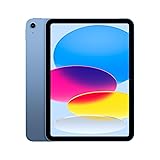
- WHY IPAD — The 11-inch iPad is now more capable than ever with the superfast A16 chip, a stunning Liquid Retina display, advanced cameras, fast Wi-Fi, USB-C connector, and four gorgeous colors.* iPad delivers a powerful way to create, stay connected, and get things done.
- PERFORMANCE AND STORAGE — The superfast A16 chip delivers a boost in performance for your favorite activities. And with all-day battery life, iPad is perfect for playing immersive games and editing photos and videos.* Storage starts at 128GB and goes up to 512GB.*
- 11-INCH LIQUID RETINA DISPLAY — The gorgeous Liquid Retina display is an amazing way to watch movies or draw your next masterpiece.* True Tone adjusts the display to the color temperature of the room to make viewing comfortable in any light.
- IPADOS + APPS — iPadOS makes iPad more productive, intuitive, and versatile. With iPadOS, run multiple apps at once, use Apple Pencil to write in any text field with Scribble, and edit and share photos.* iPad comes with essential apps like Safari, Messages, and Keynote, with over a million more apps designed specifically for iPad available on the App Store.
- FAST WI-FI CONNECTIVITY — Wi-Fi 6 gives you fast access to your files, uploads, and downloads, and lets you seamlessly stream your favorite shows.

Why we picked it
- Best display, by far — 2360×1640 Liquid Retina vs. 1920×1200 LCD on every Android pick
- A16 chip handles anything HA can throw at it, including multiple 4K camera streams
- 5–6 years of guaranteed iPadOS updates
- Native HomeKit integration if you live in both ecosystems
What you give up
- 4× the price of the Lenovo M11
- No Fully Kiosk Browser on iPadOS — you use Guided Access, which is less flexible
- No native battery limiter — needs a smart plug like the Fire HD 10
Setting up your tablet as a Home Assistant kiosk
The hardware is half the project. Here’s the short version of the software side, regardless of which tablet you pick.
Install Fully Kiosk Browser (Android only — for iPad, see Guided Access below). This is the de-facto kiosk app in the HA community for good reason: it can lock the screen to a single URL, restart automatically if it crashes, wake on motion using the front camera, and integrate with HA via REST commands so you can turn the screen on or off based on automations. The free version is fine to test; the licensed version is around $10 and removes the watermark.
Configure the dashboard URL. Point Fully Kiosk at http://your-ha-instance.local:8123 (or your HA Cloud URL). Enable “Auto Reload” every few minutes to recover from network blips, and turn on “Restart on Crash”. Set “Motion Detection” to wake the screen when someone walks up to the tablet — a nice touch that also reduces burn-in.
Set up battery management. If your tablet has a native charge limiter (Lenovo, Samsung), turn it on. If not, plug the tablet into a smart plug (any Zigbee or Wi-Fi plug works) and create an HA automation: switch the plug off when battery > 80%, on when battery < 30%. This requires the HA Companion app installed on the tablet to expose battery state to HA — which is one more reason to prefer tablets with Google Play.
Mount it. Skip the cheap suction-cup holders. The clean look comes from either a flush wall mount (search Printables for "[your tablet model] flush mount" — community 3D files exist for every tablet in this guide) or a low-profile magnetic mount with a USB-C right-angle cable so the charge cable doesn’t poke out. A $5 right-angle USB-C adapter dramatically improves the final look.
iPad users: Apple’s Guided Access (Settings → Accessibility → Guided Access) plus Safari pinned to your HA dashboard URL is the standard setup. It’s clunky to enable initially (triple-click the side button to lock in/out), but it works reliably.
Frequently Asked Questions
Do I need a powerful tablet for Home Assistant? No. Even the Fire HD 10 with 3 GB of RAM handles a typical Lovelace dashboard fine. Where extra power helps is multiple live camera streams, 3D floor plans, or animated weather widgets. For the average kitchen-counter dashboard, anything in this guide is overkill.
Will a wall-mounted tablet’s battery die in a year? Only if you don’t manage it. A tablet at 100% charge 24/7 will swell within 12–18 months. With a charge limit set to 60–80% (native or via smart plug), the same battery will last 4–5 years.
Can I use an old phone or iPad instead? For a small dashboard in a hallway or office, absolutely. The screen will be a bit cramped, but a 5–6-inch phone running Fully Kiosk Browser works fine and costs nothing. Just be aware that older iOS/Android versions may have compatibility issues with HA’s modern frontend.
Do I need PoE (Power over Ethernet)? No, but it’s nice. If you already have PoE in the wall, a PoE-to-USB-C splitter eliminates one cable run. For most homes, plain USB-C with a right-angle adapter looks just as clean and costs $50 less.
Is the new Samsung Tab A11+ worth waiting for? The A11+ launched in late 2025 and is a modest upgrade over the A9+ — newer chip, a bit more RAM, the same screen and form factor. As of early 2026, the price premium isn’t justified for a wall kiosk where the A9+ already does everything you need. Buy whichever is cheaper at the moment you’re shopping.
Bottom line
For most people, the Lenovo Tab M11 is the right call: built-in battery management, native Google Play, a price that lets you buy two without flinching. If you want to deploy four kiosks across the house, drop to the Fire HD 10 and accept the sideloading detour. If long-term software support matters to you, pay extra for the Galaxy Tab A9+. And if you’re an Apple household with money to spend, the iPad (A16) will look better on your wall than anything else here — at a premium that only makes sense in context.
Whichever you pick, the real magic comes from Fully Kiosk Browser, a working battery automation, and a clean wall mount. Get those three right and you’ll forget your kiosk is even a tablet.
Related fixes: Comparing Fire and Android options for a wall panel? Note that Amazon replaced Fire tablets with Android-based Alexa Tablets in October 2026 — here’s what changed. For budget panels, see best tablets under $100.
Last updated April 2026. Hardware recommendations reflect models with active community support and verified Home Assistant compatibility. If you’ve built an HA kiosk with a tablet not on this list, email us — we update guides based on real-world deployments.